AI Image to Video Twerk Prompt: Complete Guide
Transform any still photo into a realistic twerk video using AI. This guide covers how the technology works, what photos produce the best results, and how to write prompts that match your images.
Generate Your Twerk Video NowSee It In Action
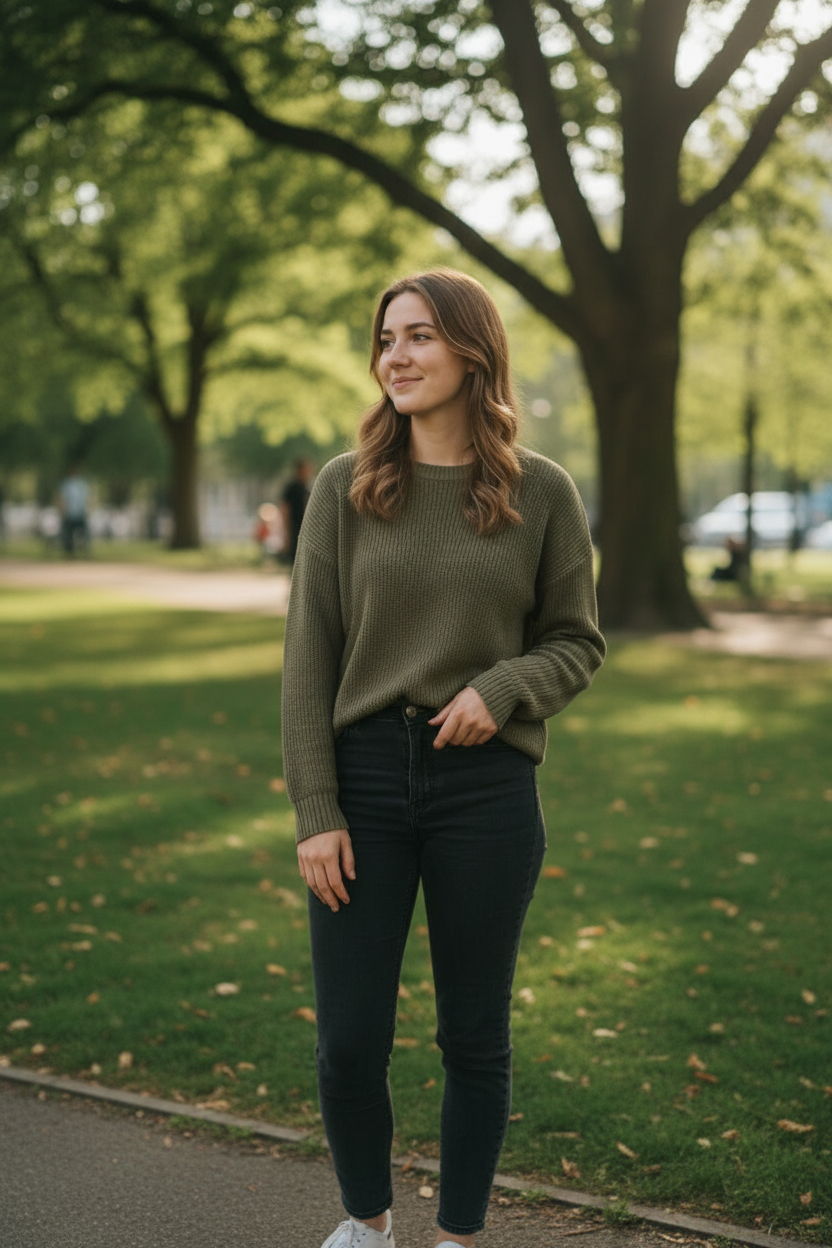
Input Photo
AI Twerk Output
How Image-to-Video Twerk Generation Works
Image-to-video twerk generation is a specific application of AI that takes a single still photograph and produces a video where the person in the photo appears to be performing twerk movements. Unlike text-to-video systems that generate everything from scratch, image-to-video preserves the exact appearance of the person in your photo while adding realistic motion.
The process begins when you upload a photo. The AI analyzes the image to identify the person, their body position, clothing, background, and overall composition. It creates a detailed internal representation of the scene, mapping out the skeletal structure of the person and understanding the spatial relationships between different body parts.
Next, the AI generates a motion plan based on your selected twerk style or custom prompt. This motion plan is a frame-by-frame blueprint of how the person's body should move over the duration of the video. The motion plan is specifically tailored to be compatible with the person's starting position in the uploaded photo.
Finally, the AI renders each frame of the video. For every frame, it repositions the person's body according to the motion plan while maintaining visual consistency with the original photo. This means the person's face, clothing, skin tone, and other identifying features remain stable throughout the video. The background is also preserved and adjusted as needed to account for the body movement.
The result is a smooth, realistic-looking MP4 video that appears to show the person in your original photo performing a twerk dance, even though they never actually danced.
Matching Prompts to Your Input Photo
The relationship between your prompt and your input photo is critical. A great prompt paired with the wrong photo, or vice versa, will produce disappointing results. Here is how to align the two for optimal output.
Standing full-body photos offer the most flexibility. When the person is standing upright with their full body visible, nearly any twerk prompt will work well. The AI has the full range of body movement available and can animate from a neutral starting position into whatever twerk style you describe.
Photos with a slight lean or angle naturally suit certain styles. If the person is leaning forward slightly, prompts that describe forward-leaning twerk movements will produce more natural transitions. The AI does not need to dramatically reposition the body before the twerk movement begins, resulting in smoother output.
Side-angle photos work well for lateral hip movements. If the photo shows the person from a three-quarter or side angle, prompts that emphasize side-to-side hip movement or circular rolling tend to look most natural because the AI can showcase the hip motion from that viewing angle.
Rear-facing photos are ideal for traditional twerk content. When the person's back is toward the camera, the AI can generate the most authentic-looking twerk motion because the viewer sees the movement from the angle where twerking is most visually prominent.
The key principle is to choose prompts that complement the pose and angle already present in your photo. Work with what the image gives you rather than fighting against it.
Best Photo Types for Twerk Video Generation
Not all photos produce equally good results. Understanding what makes a photo well-suited for twerk video generation will help you choose the right images and take better photos specifically for this purpose.
Full-body visibility is the most important factor. The AI needs to see the person from head to toe to generate accurate full-body motion. Cropped photos that cut off the legs or head will produce incomplete or awkward-looking animations.
Good lighting makes a significant difference. Well-lit photos with even lighting across the body give the AI more detail to work with. Harsh shadows, backlighting, or very dark images can cause the AI to lose track of body contours, leading to artifacts in the generated video.
Simple backgrounds produce cleaner results. A plain wall, a solid color, or an uncluttered environment lets the AI focus its processing power on the body animation rather than trying to manage complex background elements. Busy backgrounds with many objects can sometimes cause visual artifacts during animation.
Sharp focus on the subject is essential. Blurry photos give the AI less information to work with, which limits the quality of the output. The subject should be in clear focus throughout the image. Background blur is fine as long as the person is sharp.
Resolution matters. Higher resolution photos provide more pixel data for the AI to analyze, which translates to more detailed and realistic output. We support images up to 10MB, and using the full available resolution generally produces better results.
Clothing fit affects quality. Tight-fitting clothing allows the AI to accurately track body contours during animation, producing more realistic movement. Very loose or flowing garments can still produce good results but may introduce some unpredictable fabric motion.
Natural poses work best. Photos where the person is standing naturally, not in an extreme pose, give the AI the most room to generate smooth transitions into twerk movement. Heavily posed or contorted starting positions can result in awkward initial frames.
Prompt Templates for Different Photo Types
Here are proven prompt templates organized by the type of photo you are working with. These templates have been tested across hundreds of generations and consistently produce strong results.
For standard standing photos:
"Rhythmic twerk bounce with moderate speed, natural hip movement, upper body staying relaxed and steady."
"Steady twerk with smooth hip drops, building in intensity over the duration of the video."
For photos with the person leaning forward:
"Forward-leaning twerk with deep hip bouncing, hands on knees for support, energetic rhythm."
"Twerk from a bent-over position with rapid hip movement and a powerful bounce."
For side-angle photos:
"Hip-focused twerk showing lateral hip movement, circular rolling combined with bounce, moderate pace."
"Side-view twerk emphasizing the range of hip motion, smooth transitions between movements."
For rear-facing photos:
"Classic twerk with focused hip and booty bounce, rhythmic movement, moderate to fast speed."
"Deep twerk drops with powerful upward bounce, keeping the legs steady while hips move freely."
For photos near a wall:
"Wall twerk with hands braced against the surface, deep squat position, intense rhythmic bouncing."
"Hands-on-wall twerk with a steep lean angle, hips bouncing with power and control."
For photos in athletic wear:
"Athletic twerk with sharp, defined movements, emphasizing muscle control and precise hip isolation."
"Gym-style twerk with powerful bouncing, full range of motion, energetic and fast."
For photos in casual or dressy outfits:
"Smooth, controlled twerk with flowing movement that complements the outfit, moderate intensity."
"Elegant twerk with graceful hip movement, steady rhythm, and a polished feel."
These templates are starting points. Feel free to modify them based on the specific characteristics of your photo and the style you want to achieve.
Troubleshooting Image-to-Video Results
If your AI twerk video does not look the way you expected, here are common issues and their solutions.
Problem: The motion looks stiff or robotic.
Solution: Try adding words like "smooth," "fluid," or "natural" to your prompt. Also check your input photo. Very rigid poses can translate to stiffer animation. Try a photo where the person has a more relaxed posture.
Problem: The face or body distorts during animation.
Solution: This usually happens with low-resolution photos or photos where the person is very small in the frame. Use a higher resolution image where the person fills more of the frame.
Problem: The background has visual artifacts.
Solution: Complex or detailed backgrounds are harder for the AI to manage during animation. Try using a photo with a simpler background, or accept that some background variation is normal and focus on the body movement quality.
Problem: The twerk style does not match what I described.
Solution: Your prompt may be too vague. Add specific descriptors for speed, intensity, and movement type. If using a custom prompt, try one of our presets first to see if it produces the result you want, then refine from there.
Problem: The clothing looks unnatural during movement.
Solution: Very loose or flowing garments are harder for the AI to animate realistically. If possible, use a photo where the person wears fitted clothing. You can also try reducing the intensity in your prompt, as gentler movement puts less strain on clothing simulation.
Problem: The video starts with an awkward transition.
Solution: The starting pose in your photo may conflict with the movement described in your prompt. Choose a prompt that matches the natural position of the person in your image. If they are standing straight, start with a standing twerk prompt rather than a squat twerk prompt.
Getting the Most from Your Generations
Maximize the value of each generation by following these practical tips.
Start with presets before going custom. If you are new to the tool, generating a few videos with our preset styles helps you understand the range of available outputs. You can then use custom prompts to fine-tune toward your preferred style.
Try multiple photos of the same person. Different angles and poses produce different results even with the same prompt. If you have several photos to choose from, test the one that best matches the movement you want.
Iterate on your prompt one variable at a time. If a result is close but not perfect, change only one aspect of your prompt, such as speed or intensity, and regenerate. This helps you identify exactly which change produces the improvement you want.
Use the 10-second duration for testing. When experimenting with different prompts or photos, the 10-second option uses fewer credits while still giving you a clear preview of the motion quality. Switch to 15 seconds once you have found the prompt and photo combination you like best.
Save your successful prompts. When you find a custom prompt that consistently produces great results, save it somewhere so you can reuse it with different photos in the future. Building a personal library of proven prompts saves time and credits.
Combine this guide with our Best AI Twerk Prompt page for specific prompt examples across all twerk styles. Together, these resources give you everything you need to create professional-quality AI twerk videos from any photo.
Ready to Create Your Twerk Video?
Upload a photo and get a realistic AI twerk video in minutes.
Try It Now